Monday, July 15, 2013

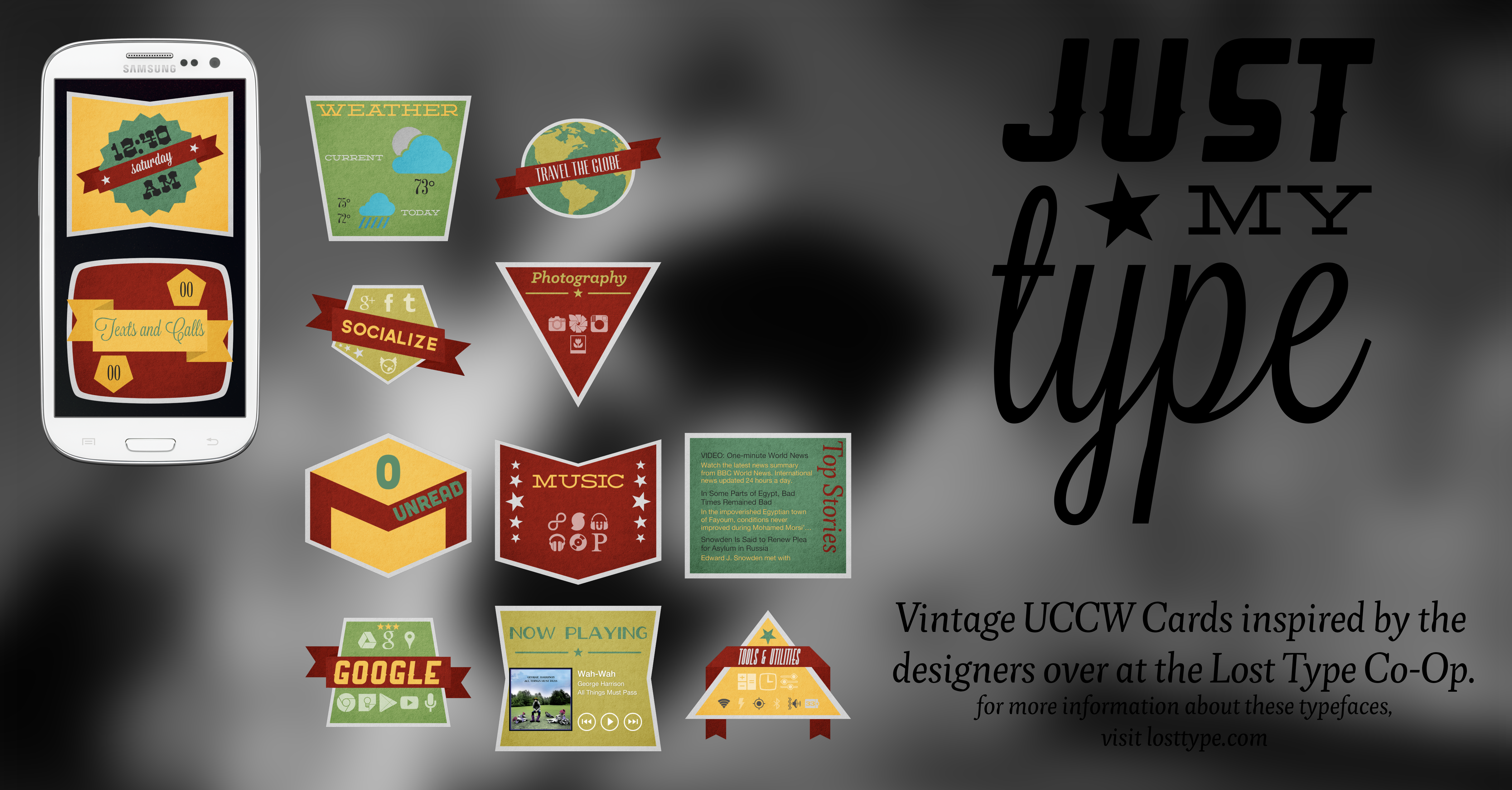
Just My Type: Vintage Cards for UCCW

you definitely need to check this on up close... click here

Okay, so this is a theme That I've wanted to do for a while now. Since Google Now came out, I've seen a lot of card themes and most have been more of the same: flat white cards with grey Roboto text. This is a vintage take on that idea. I've also wanted to do something that shows off all of the great typefaces from the Lost Type Co-Op. All of these fonts are pay what you want and 100% of the money you spend goes directly to the designer so throw them a couple of bucks if you can.

With this theme I also tried to do something new by using Lightning Launcher. I originally wanted one long vertically scrolling home screen but when I started playing around with Lightning I found myself getting frustrated. Among other things, my icon pack isn't compatible with Lightning so I decided to scrap the idea and just use Nova again. My next big project is a major update of my icon packs supporting this launcher and others as well as a major rewrite of the code. So, until that gets done, I'm going to put Lightning launcher themes on the back burner. I do think there is a lot of potential with the software so I definitely do want to revisit it and try again.

Before you get started, I'm not 100% sure if UZIPs package weather icons, so you may need to see this post for the weather icons download. Even if it does, the download has 4 variations you might be interested in.

Resources:

Nova Launcher
UCCW
Simple RSS Widget
Clear Widget UberMusic Skin
Power Toggles
Shapely White Icons
Resources ZIP file 

Fonts Used:

Time: Dude (Tammy)
Day: Mission Script
Texts and calls: Lavandaria
Numbers: Abraham Lincoln
Weather Text: Deming EP
Weather Numbers: Abraham Lincoln
Social: Governor
Gmail: Cubano
Google: Ranger
Browser: Tommaso
Photo: Klinic Slab (Bold Italic)
Music: Deming EP
Now Playing: Oil Can
News: Pigeon
Tools: Valencia (Black Oblique)

Color Palette Hexcodes:

Red: #8c2318
Yellow: #f2c45a
Yellowish Green: #bfb35a
Blueish Green: #5ec6a
Greenish Green: #88a65e
Whiteish: #dadada
Blackish: #
252525

PSDs:

If you want to make your own cards, I've included a PSD with blank cards. It contains one of each shape in every color. make the card you need, add the texture to the top, trim off the textures edges and save it as a PNG.

Nova Launcher:

Set the following:
  • Wallpaper to something Dark (I just zoomed into this black, speckled area of a wallpaper I already had)
  • Desktop Grid: 9x16
  • Icons: Shapely White
  • Icon Size: 85%
  • Screens: However many you need, 2 cards fit on a page.

UCCW:

The cards serve a few purposes:
  1. Display information (Time, Phone, and Weather Cards)
  2. Open apps (Browser and Gmail cards)
  3. Hold widgets (News, Tools, and Now Playing cards)
  4. Hold icons (Social, Google, Music, Photo, and Tools cards)
Once you've placed and resized your widgets, layer other widgets and icons on top and you're done!

Saturday, July 13, 2013

Shapely Weather Icons for UCCW


Well, it's been nearly a week since I've posted a theme and it's because the one I'm working on now uses a lot of resources that I've had to create from the ground up. One of those resources was a set of weather icons for UCCW. I created a set with my last theme but felt it needed some fine tuning. I like the shapes but the bright white and pitch black didn't fit in with the theme I've been working on. Since I had to create a set anyways, I figured I would clean up the ones I've already made.

Within the zip folder, you'll find 4 variations of the icons. Pure white, pure black, a bright colorful version, and a more muted version with a little texture to it. The muted icon pack is the one that goes with the retro theme that will be posted in the next day or two (I've got to get everything packed up for you guys).

Download the ZIP and place the folders in "Phone>UltimateCustomClockWidget>weather"

Sunday, July 7, 2013

Pullin' Out: Clean, Functional UCCW Sidebars

for a full size preview click here

Okay, since some people found something dirty with my last theme's name, "Tucked Away", I figured I'd name this one something that couldn't possibly be misinterpreted.

This isn't really a theme like the others. I don't usually get a chance to use full screen wallpapers because I'm always completely redesigning my phone's UI. This was a good way for me to incorporate all of the things I need on my phone and still be able to show off my wallpaper.This really only uses UCCW and a couple of Nova Actions so this tutorial is mainly how to tweak it for your own needs.

Resources:

Nova Launcher
UCCW
ZIP File
Photoshop or other image editing software (if you want to change the shortcuts)

Editing the PSDs:

First thing is first, you'll need to tweak the sidebars to show the apps that you use most. You can see I've got my Google Apps on the left and Music, Photo, and Social on the right. In the PSDs, all of the layers are seperated so that you can easily change the headings, icons, and app titles. You can even change the length of the dividing lines in case your headings are a different length than mine. Everything falls on the gridlines so make sure you snap to them.

The font you'll need for editing the PSDs are all in the Roboto family, and the icons are based off of my Shapely White Icons. If you want you can change the icons to something else or delete them completely and just drop you own icons on top of the sidebar.

You may have already noticed that there is no phone or messaging icon. Don't worry about wasting room on these. The notifications provide hotspots for phone, messaging and gmail. The clock at the top provides hotspots for the clock and calendar.
After you have everything looking good, save it as a PNG.

Move files to your Phone:


  • The sidebar PNGs, wallpaper, and arrow icon PNGs can go anywhere on your phone
  • The UZIPs must be on your phone's internal storage. I suggest in the folder 'uccwOutput'
  • the weather icon folders go in 'Phone>UltimateCustomClockWidget>weather'

Setting up the Widgets:

If you haven't made any adjustments, you can skip this step. IF you have made changes and created a new PNG, you'll have to make some changes to the UZIPs. Open them up in UCCW and change image 1 to your new PNG. Now you'll have to adjust your hotspots. on the right, you've got 12 hotspots, one for each app going down the line. Pretty simple. The left side's hotspots are:

  1. Clock*
  2. Calendar*
  3. Phone*
  4. messaging*
  5. gmail
  6. google now (on google heading)
  7. chrome
  8. drive
  9. maps
  10. youtube

*you may also want to double check these to make sure your phone's stock apps use the same activity name.

Placing everything:


  • Set Nova Launcher to 9x16 grid, no margins
  • Place UCCW widgets and resize to 6x16 on left and right screens
  • Place 'jump to page x' Nova actions and change icons to the arrows
  • Change animation to none so the sidebars "slide" out

A few final notes:


  1. If you want white sidebars, open the PSDs and on each layer hit ctrl+i to invert the colors. The arrows and weather icons come in black and white.
  2. While I like the weather icons I've made, I'm going to redo them and tighten things up a bit. When I do update them, I'll create a seperate post for them with a new download, so be checking back.
  3. There isn't suppossed to be a gap between the sidebar and the edge of the screen but I figured it wasn't too distracting so I'd let it slide. If you know of a fix, feel free to leave it in the comments below.

Friday, July 5, 2013

Tucked Away: Clean, Simple, Organized


for a full size preview click here

This is a simple theme that mainly consists of 4 organizational wallpapers, the colors are based on the note colors of Google Keep.

Resources:


Now let's put it together...

Multipicture Live Wallpaper:

As in past themes, we’re going to set up our MultiPicture Live Wallpaper to display a different image for each homescreen. The PNGs included in the Resource folder are the ones I used. I’ve also include the PSDs if you want to make changes to the section headings for what you use most.

After you’ve set your walls you can change your transitions that you prefer. The crossfade transition looks nice going between the homescreens, unfortunately Nova Launcher doesn’t have this option so I usually set them both to something that matches.

Nova Launcher:

As far as your launcher goes, the wallpapers allow for you to choose what grid size you need for your icons and widgets. The grid size I’m using is 5x8. If you want something like two widgets side by side the same width, you can use an even number of columns. I would still recommend using 8 rows though.

As always no margins, status bar, or dock.

Like the GreenScreen theme, we’re also going to place some page jumps. On each arrow, place the Nova Action for Jump to page x. Long press to edit the icon and change it to the included blank png.

All the Rest:

Again, this is totally up to you. The widget’s I’m using are UCCW on the home page (UZIP included), Simple RSS Widget on the news page, Clear Widget Ubermusic Skin on the media page, and Tubular icons throughout.


For widgets that allow you to adjust the text color, the hexcodes are #ffffff for light fonts and #252525 for dark ones. All of the hexcodes for the Keep note colors are also included in the ZIP file.

Thursday, June 27, 2013

Blurred Lines: 3 Screens. Seamless Transitions


for a full size preview click here

I've been meaning to try a seamless panorama for a while now. This was the result...

Resources:

MultiPicture Live Wallpaper
Nova Launcher Prime
UCCW
Power Toggles
Tubular Icon Pack
Roboto Thin font by Christian Robertson
ZIP folder with resources.

Before you Start:

Before you get started with your phone, you have the ability to change the wallpaper. The picture you choose should be at least 2160x1280 with most of it in sharp focus (yields a better result when the lines are blurred).

Photoshop:


  • Replace my watery orange with your own image.
  • Use the magic wand to select the blue lines in the topmost layer (either style of lines)
  • Select the first layer, add an 11 pixel Gaussian blur
  • Run a white brush over it at 10% opacity to make it pop.
  • Now break up the whole thing into three 720x1280 images (left, middle and right) and save each as a separate PNG

Now that you've got all of your resources, it's time to assemble it.

MultiPicture Live Wallpaper:


  • Set three wallpapers on 3 seperate screens
  • Set transitions to slide

Nova Launcher:


  • Like always, no margins, dock, or notification bar
  • Set grid to 11x5
  • Icon size is set to 130%

UCCW:

The UZIPs for the clock and day are in the folder, If you want to design your own widgets with different info, the font is Roboto Thin and the angle is -39 degrees. Place the 4x4 widgets. There are no hotspots because I couldn't angle them and I didn't want to have a huge chuck of the screen constantly opening my clock and calendar.

Everything Else:

...is really up to you. I chose to use these icons because I just got done making them and I'm really pumped about them. The center screen has five common apps. The left and right screens have folders for media, social, games, and tools/settings. in the outside bars, I used Power Toggles to easily turn on my wifi and bluetooth, as well as control my music. Figure out what you need; these are just some of your options but any 1x1 widget or icon should work.

The real beauty lies within the wallpaper, the rest is pretty flexible.

Monday, June 24, 2013

Big Red v.2.0

for full size preview click here

I've got to find all of the original files for Big Red v.1.0 but in the meantime here is Big Red v.2.0. This theme is completely done with Nova Launcher and UCCW and with the broad categories, you may not even have to edit anything. However, if you do want to change some things up, the PNGs are included with the ZIP folder. There are no PSDs this time but to make adjustments, use to spot healer to remove the names, Roboto thin to replace them, and the arrows all fall on the grid lines so Snap to grid and use the pen tool to make selestions of the picture to remove.

Resources:

Nova Launcher:

  • Set your grid to 9x16
  • Change your color theme to #cd4f42
  • Change icon theme to Shapely White
  • Change icon size to 85%
  • Set wallpaper (included in ZIP folder)

UCCW:

Set UZIPs from resources folder and resize
  • Folder Icons are 3x6 or 6x3. Pictures are hotspots to certain apps, menu dots don't do anything (yet).
  • Center console is 9x4 with hotspots on notifications, time and date open their respective apps.

Back to Nova Launcher:

Now, start a second screen and add all of the icons that you regularly use to this screen. Drag them on top of each other to create folders of apps relating to each of the categories that you have. Drag these folders onto the menu dots and change the folder's icon to the blank PNG to make it invisible. (Move it into position before making it transparent).

Widget Locker:

Open Widget Locker, add Center console UZIP, I don't remember what the name of the slider is but it's one that comes with Widget Locker so you shouldn't have to hunt for it.

Nothing too difficult. You should definitely be able to handle this.

GreenScreen: Flat and Bright

for a full size preview click here

This theme was inspired by the new UI of Dolphin Browser using the Roboto font family, Dolphin's #389d00 green, some random images I found on Tumblr and googled for high res versions, and my Shapely White icons.

Resources:

Clear Widgets UberMusic Skin

Setting it up:

First and foremost, The ZIP file includes a bunch of resources. If you like the way this theme is set up then you can use the UZIPs and PNGs. I've also included PSDs in case you want to make some adjustments to the links or pictures. The pictures were found on Tumblr and googled for high-res versions. The icons are based on my Shapely White Icons, but there are plenty of other flat icon packs that you could use.

Nova Launcher:

Set your grid to 9x16 and turn the animations to Cube. I can't remember the speed but it needs to be slow so that it matches the speed of the MPLW transition. Also, set up 5 screens.

MultiPicture Live Wallpaper:

Set each of your 5 screens to use your PNGs, Change the animation to Cube Out.

Back to Nova:

This part sucks. Now we have to set up our tabs. Long tap to bring up the insert menu, choose Nova Actions, and select jump to page x. You need four for each tab, and 4 of the tabs need to be done for each page. After five pages, this amounts to 80 icons.
After they're in place, now long tap each icon, select edit, tap the icon, and change it to the blank PNG included in the ZIP file.
Again, this process sucks but it makes the tabs functional, not just for decoration. It also means your finger doesn't have to travel as far to get between the 5 screens.

Desktop Visualizer:

With Desktop Visualizer, Place and resize widgets to 7x2. Place them over the individual options.Now tap the widget to select the blank PNG to display and select the app it opens. Check out all of your options in desktop visualizer. Soundhound actually has an ID Now option that allows the link to open up the app listening for the song so you can capture that song even faster. Other apps may have similar functions with Desktop Visualizer.

Other Widgets:

Other widgets layered on top:
  • 4x2 UCCW time on each page
  • 4x2 UCCW Date on each page
  • 7x2 UCCW Notifications on first home screen
  • 4x2 Clear Widgets Ubermusic Skin resized to 7x3 on Music page

A little complicated but well worth it in the end. Enjoy!